
Exporting Revokes
Exporting Revokes
Section titled “Exporting Revokes”After completing a User Access Review campaign, you may need to export the list of revoked items to share with the relevant teams for action. This guide walks you through the process of exporting revoked access items from a finalized campaign.
Prerequisites
Section titled “Prerequisites”- A finalized User Access Review campaign
- Appropriate permissions to view campaign results
Steps to Export Revokes
Section titled “Steps to Export Revokes”1. Navigate to Campaigns
Section titled “1. Navigate to Campaigns”From the main navigation menu, select Campaigns to view all available campaigns.
2. Open the Finalized Campaign
Section titled “2. Open the Finalized Campaign”Locate the finalized campaign you want to export revokes from, and click the View button to open the campaign details.
3. Filter Review Items by Decision
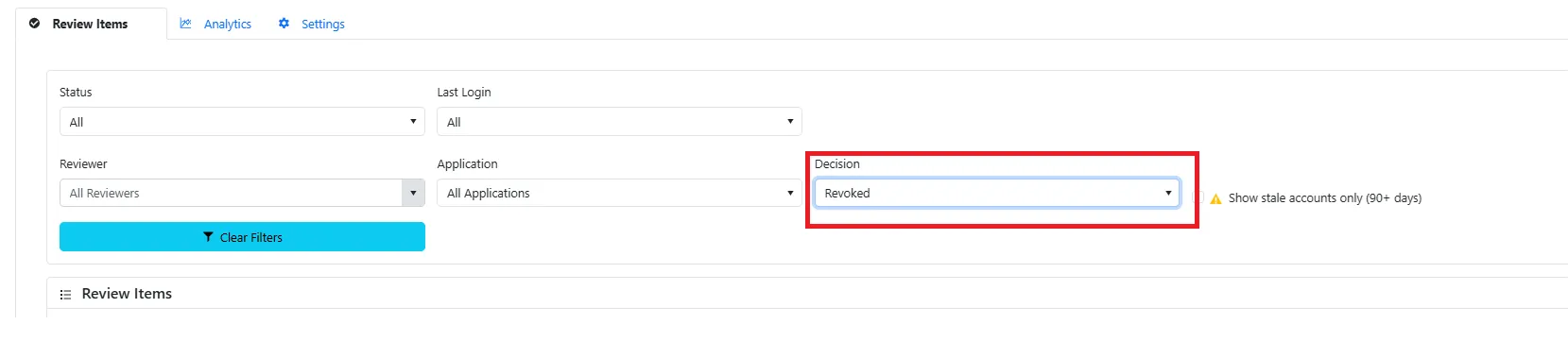
Section titled “3. Filter Review Items by Decision”Once inside the campaign view:
- Navigate to the Review Items section
- Locate the Decision filter dropdown
- Select Revoked from the dropdown menu
This will filter the review items to show only those that have been revoked during the campaign.
4. Export the List
Section titled “4. Export the List”With the filtered view showing only revoked items:
- Click the Export button (typically located near the top of the Review Items section)
- Choose your preferred export format (CSV, Excel, etc.)
- Save the exported file to your desired location
What’s Included in the Export
Section titled “What’s Included in the Export”The exported file will contain details about each revoked item, including:
- User information
- Access/permission details
- Review decision
- Reviewer information
- Review date
- Additional comments or justification