
Application Owner Reviewer Campaign
Creating a Campaign Targeting a Specific App and Application Owner Reviewer
Section titled “Creating a Campaign Targeting a Specific App and Application Owner Reviewer”This guide walks you through creating a new campaign that targets a specific application and assigns an application owner reviewer.
Prerequisites – Assign an Application Owner
Section titled “Prerequisites – Assign an Application Owner”Before creating a campaign with an Application Owner Reviewer, ensure the target application has a business owner assigned.
How to Assign a Business Owner:
Section titled “How to Assign a Business Owner:”- From the left-hand menu, click Applications.
- Find the application you want to review and click Edit.
- In the application details, assign a Business Owner.
- Save your changes.
Note: The assigned business owner will automatically become the reviewer for this application in the campaign.
Step 1–7 – Create Campaign and Add Details
Section titled “Step 1–7 – Create Campaign and Add Details”1. Open the Campaigns Page
Section titled “1. Open the Campaigns Page”- From the left-hand menu, click Campaigns.
- Click Create Campaign.
2. Enter Campaign Details
Section titled “2. Enter Campaign Details”- In the Create Campaign window, type a Campaign Name (for example,
Test Campaign). - Confirm the Campaign Owner (it defaults to the currently logged-in user).
- Enter a short Description for the campaign.
3. Choose an Application Owner Reviewer
Section titled “3. Choose an Application Owner Reviewer”- Under the Review Strategy section, open the Reviewer Type dropdown.
- Select Application Owner.
- The system will automatically assign the business owner of each application as the reviewer.
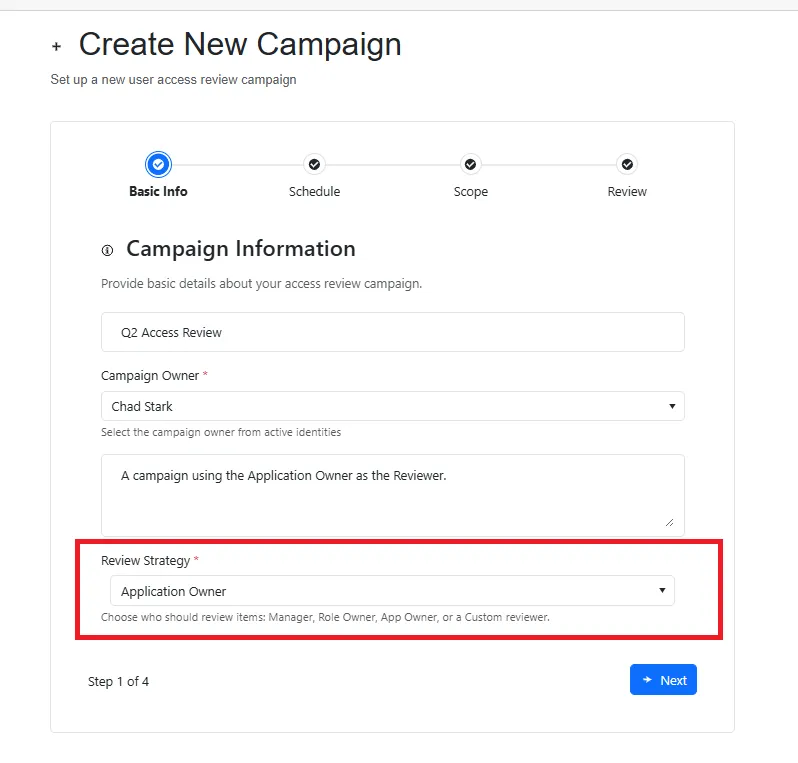
- Once selected, click Next.
Note: Only applications with assigned business owners will be included in the review.
Step 4 – Set Dates and Reminders
Section titled “Step 4 – Set Dates and Reminders”- Specify the Start Date and End Date.
- Adjust Reminder settings as needed.
- Click Next.
Step 5 – Define Campaign Scope
Section titled “Step 5 – Define Campaign Scope”- Under Campaign Scope, choose
”Application - Review access to specific applications.” - In the Application field, select one or more applications to include.
- Click Next.
Step 6 – Review and Create
Section titled “Step 6 – Review and Create”- Review the Campaign Summary to confirm all details.
- Click the Create Campaign (green) button.
Step 7 – Confirmation
Section titled “Step 7 – Confirmation”Your new campaign is created successfully.
You’ll be automatically redirected to the newly created campaign’s page where you can view and manage it.
Tip: You can return to the Campaigns page at any time to monitor progress or edit campaign settings.