Accessing and Using the UAR Reviews Platform
Accessing and Using the UAR Reviews Platform
Section titled “Accessing and Using the UAR Reviews Platform”Accessing the Platform
Section titled “Accessing the Platform”End users can access the UAR platform in one of the following ways:
- Navigate directly to:
https://companyname-uar.tikabu.io - Click any access link provided through official communications
You will be redirected to the My Reviews page:
https://companyname-uar.tikabu.io/reviews
Platform Access
Section titled “Platform Access”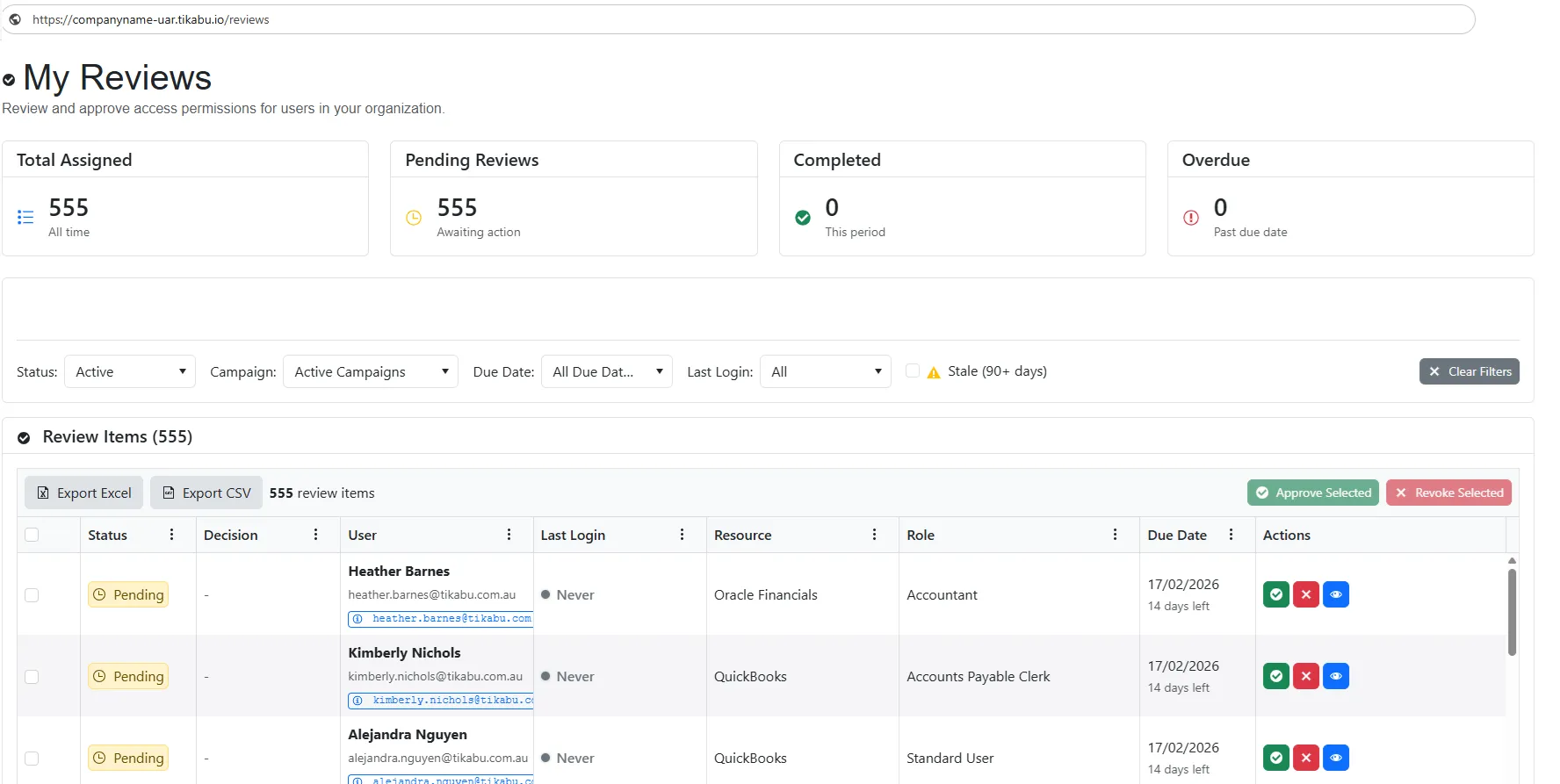
My Reviews - Overview
Section titled “My Reviews - Overview”At the top of the My Reviews page, you will see a summary of statistics relevant to your assigned campaign.
Below the statistics section, you will find a range of filters that can be applied to refine and manage your review list.
Further down in the page, you will see all the Review tems assigned to you.
Reviewing Assigned Items
Section titled “Reviewing Assigned Items”Each review item assigned to you can be actioned using the available controls within the review list.
Individual Review Actions
Section titled “Individual Review Actions”For each review entry, you can perform one of the following actions:
-
Approve Review - Click the Approve icon

-
Revoke Review - Click the Revoke icon

-
View More Details / Reassign Review - Click the View Details icon

Individual Review Actions - Screenshot
Section titled “Individual Review Actions - Screenshot”
Viewing Review Details and Reassigning Reviews
Section titled “Viewing Review Details and Reassigning Reviews”When viewing a review’s after clicking on the blue icon, you may have the option to reassign the review to another reviewer.
- If you know the appropriate manager, begin typing the manager’s name and select them from the list.
- If the correct reviewer is unknown, select Reviewer Unknown.
Once the reassignment details are completed, click Submit Review to save your changes.
Review Details and Reassignment - Screenshot
Section titled “Review Details and Reassignment - Screenshot”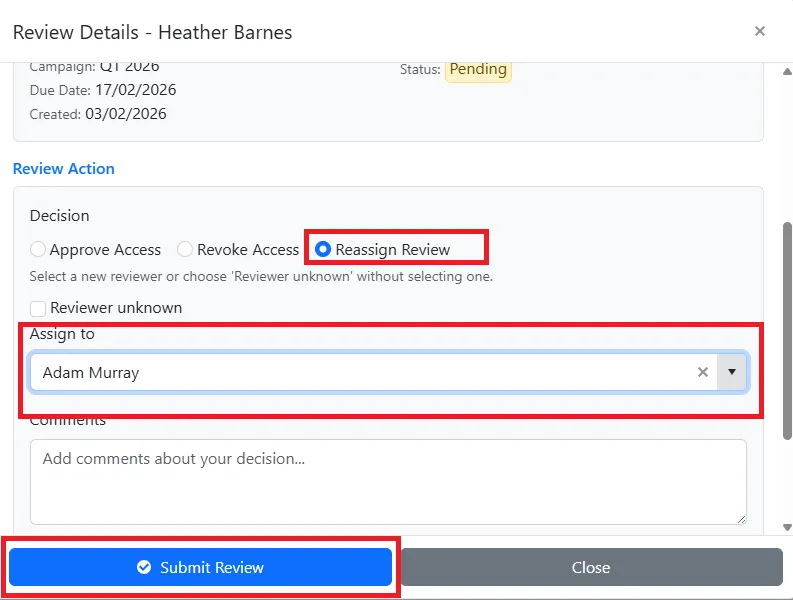
Bulk Review Actions
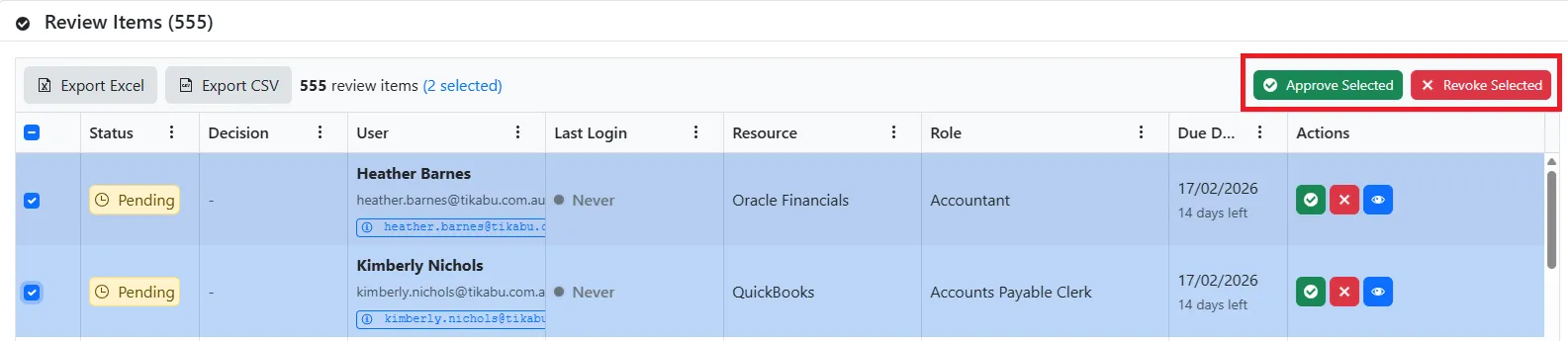
Section titled “Bulk Review Actions”You can action multiple reviews at the same time using the bulk action tools.
Steps to Perform Bulk Actions
Section titled “Steps to Perform Bulk Actions”- Select multiple review items from the list.
- Use the bulk action buttons located in the top-right corner of the page:
- Approve Selected
- Revoke Selected
- Approve Selected
This allows you to efficiently approve or revoke reviews in bulk.
Bulk Review Actions - Screenshot
Section titled “Bulk Review Actions - Screenshot”