
Connecting to the REST API
Connecting to the REST API
Section titled “Connecting to the REST API”This guide explains how to configure Microsoft Entra ID and test connectivity to the REST API using PowerShell.
1. Create a New App Registration in Entra ID
Section titled “1. Create a New App Registration in Entra ID”- Sign in to Microsoft Entra ID.
- Navigate to App registrations.
- Select + New registration.
- Enter a name for the application.
- Under Supported account types, select the following or see step 6:
Accounts in any organizational directory (Any Microsoft Entra ID tenant - Multitenant)
-
(Optional) You might have access to a (Preview) option to allow the app to only be used with your Glue instance, to do so you will need Tikabu to supply you with a tenant id. This may be listed as “Allow only certain tenants (Preview)” under the “Multiple Entra ID tenants”. See screenshot below.
-
Click Register.
⚠️ Important:
You must create a New App Registration — not a new Enterprise Application.
2. Record Required Application Details
Section titled “2. Record Required Application Details”After the app is created, record the following values:
- Azure Tenant ID
- Client ID (Application ID) Note - This needs to be supplied to the Tikabu team to authorise the access.
- Client Secret
To create a Client Secret:
- Go to Certificates & secrets
- Click + New client secret
- Copy and securely store the generated secret value
You will use these values in the PowerShell script below.
3. Test API Connectivity Using PowerShell
Section titled “3. Test API Connectivity Using PowerShell”Replace the placeholder values in the configuration section before running the script.
# ============================================# Configuration# ============================================
$customerTenantId     = "your tenant id here"$customerClientId     = "your client id here"$customerClientSecret = "your client secret here"$glueURL="your glue url"

# ============================================# Request OAuth Token# ============================================
# Token endpoint$tokenUrl = "https://login.microsoftonline.com/$customerTenantId/oauth2/v2.0/token"
# Request body$body = @{    client_id     = $customerClientId    client_secret = $customerClientSecret    scope         = "https://$glueURL/.default" # Replace YourGlueURL    grant_type    = "client_credentials"}
# Get the token$response = Invoke-RestMethod `    -Method Post `    -Uri $tokenUrl `    -Body $body `    -ContentType "application/x-www-form-urlencoded"
# Display the access tokenWrite-Host "Access Token:" -ForegroundColor GreenWrite-Host $response.access_token
# Store token for reuse$accessToken = $response.access_token

# ============================================# Example API Call# ============================================
$headers = @{    Authorization = "Bearer $accessToken"}
# Replace YourGlueURL and HostNameInYourEnvironmentInvoke-RestMethod `    -Uri "https://$glueURL/api/Devices/HostNameInYourEnvironment" `    -Headers $headers `    -Method Get

# To get the results of a query via the api$queryID=111Invoke-RestMethod `    -Uri "https://$glueURL/api/Devices/query/$queryID" `    -Headers $headers `    -Method Get
4. Screenshot – Supported Account Types
Section titled “4. Screenshot – Supported Account Types”Below is an example of where to select the correct option during App Registration:
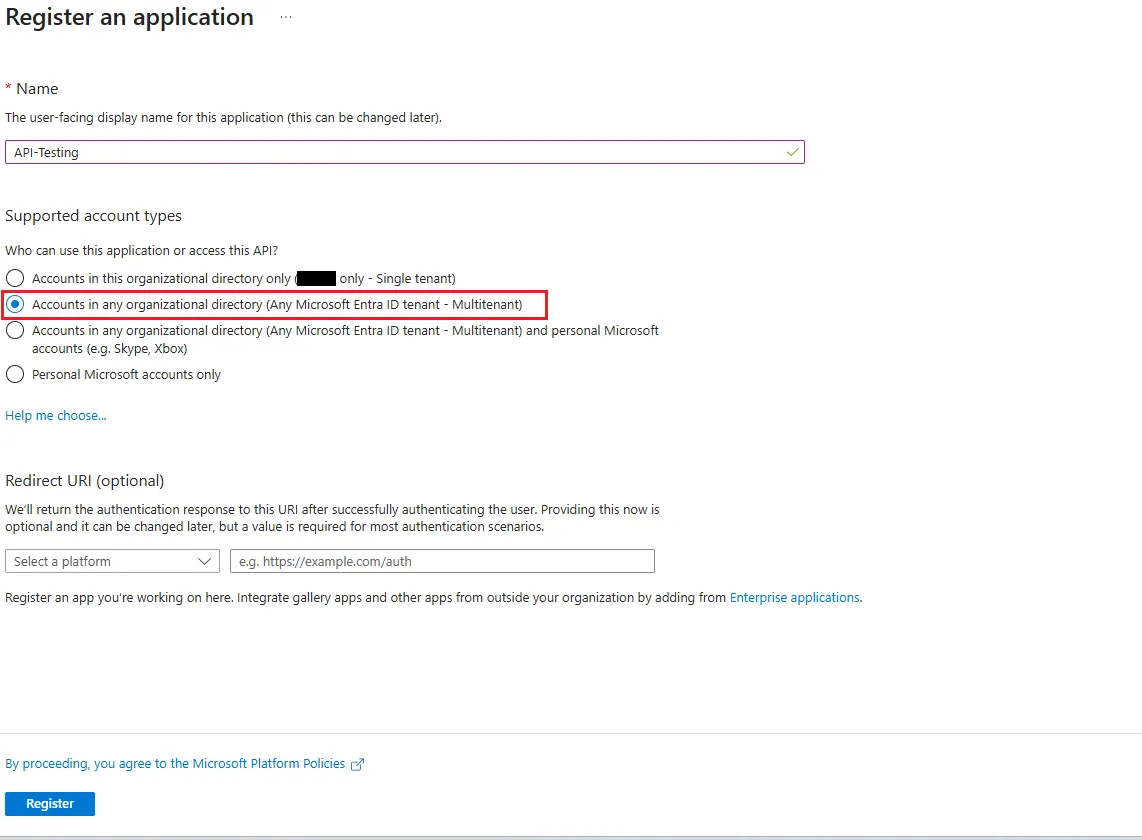
Ensure that the option selected is:
Accounts in any organizational directory (Any Microsoft Entra ID tenant - Multitenant)
5. Screenshot – Supported Account Types (Preview)
Section titled “5. Screenshot – Supported Account Types (Preview)”Below is an example of the preview feature where you can choose which Tenant ID the app is allowed to use
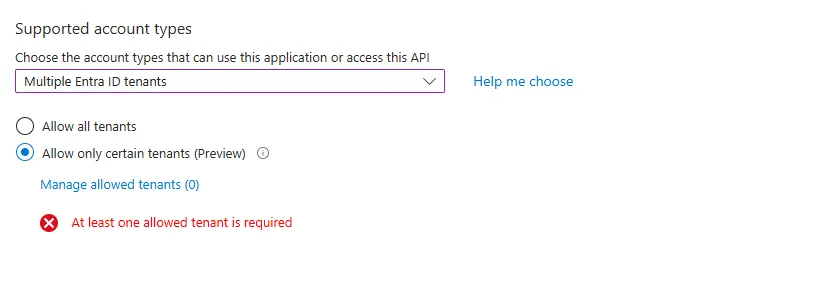
Reach out to Tikabu to get the correct Tenant ID